Command-line tools#
Four programs are installed together with the package. They give a quick look at a recording without writing any Python code.
All of them read Eyelink EDF files and eyedata objects saved with
write_file() or
write_file() (pickle files, e.g.,
.pkl or .pypil, or HDF5 files, .h5). The format is detected from the file content, not from the
extension. Instead of a local file, you can also give an HTTP(S) URL or an
SSH URL (ssh://server/folder/file.edf).
All of them accept -q (only warnings and errors, no progress bars) and
-v (debug messages, including the output of eyelinkio). Use
--help to see all options.
pypilview: look at a recording#
Opens a recording in the interactive viewer:
pypilview recording.edf
pypilview recording.edf --eyes left --variables pupil
pypilview preprocessed.pypil
For example, pypilview recording.pkl --variables pupil x (zoomed in to
ten seconds):
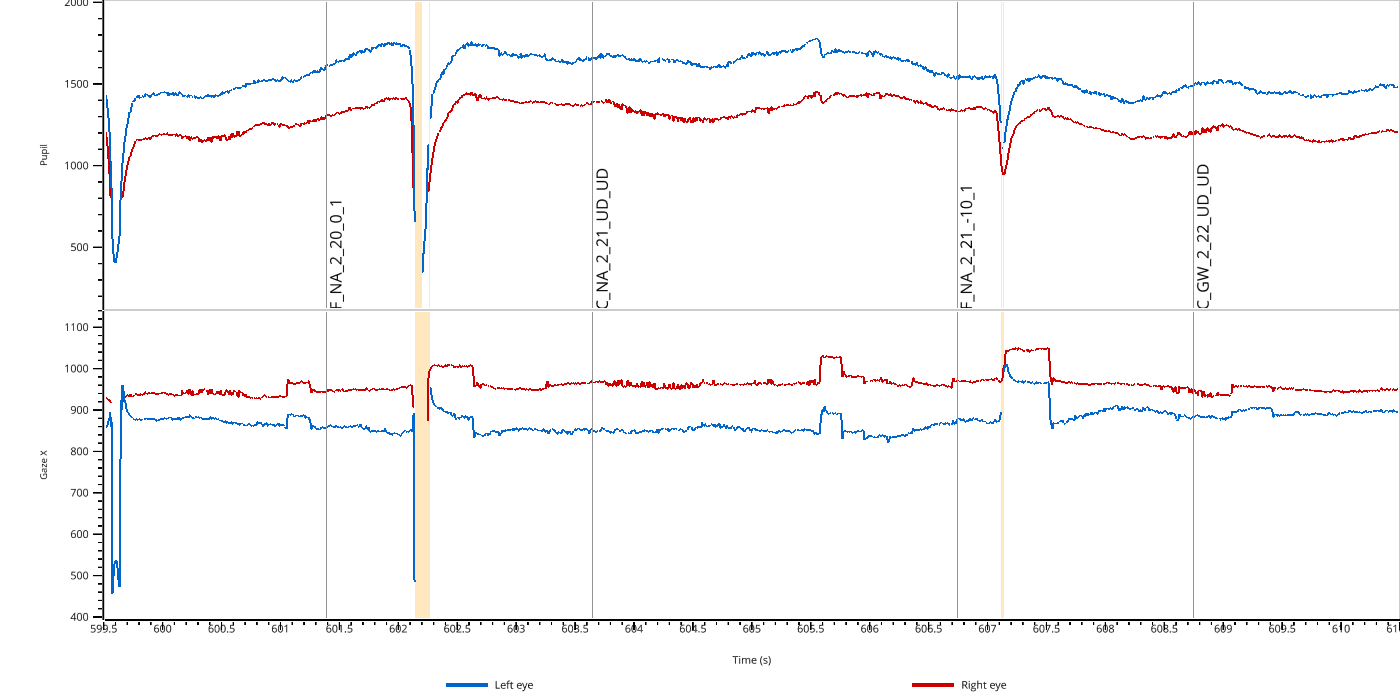
Press H in the viewer for the keyboard controls. See GPU-Accelerated Viewer (pp.view) for what you can do in the viewer.
pypilinfo: summarize files#
Prints a summary of one or more files: variables, sampling rate, duration, events, blinks and the processing history.
pypilinfo recording.pkl
pypilinfo data/*.pkl
For a 40-minute binocular recording:
$ pypilinfo recording.pkl
recording.pkl (PICKLE, 11.2 MB)
EyeData(recording.edf, 124.5MiB):
 n                 : 1245363
 sampling_rate     : 500.0
 eyes              : ['left', 'right']
 data              : ['left_x', 'left_y', 'left_pupil', 'right_x', 'right_y', 'right_pupil']
 nevents           : 1027
 experimental_setup: {'screen_resolution': (1920, 1080), 'physical_screen_size_mm': None, 'eye_to_screen_distance_mm': 'not set', 'camera_position': 'not set'}
 calibration       : {'left': {'n': 9, 'mean': 0.9833, 'sd': 0.3261, 'max': 1.62, 'min': 0.49}, 'right': {'n': 9, 'mean': 0.4956, 'sd': 0.2743, 'max': 0.91, 'min': 0.15}}
 duration_minutes  : 41.5121
 start_min         : 0.0
 end_min           : 41.5121
 params            : {}
 nblinks           : {}
 blinks            : {'left': None, 'right': None}
 glimpse           : EyeDataDict(vars=6,n=1245363,shape=(1245363,)):
  left_x (float64): 817.3, 817.0, 816.7, 816.7, 816.7...
  left_y (float64): 345.2, 343.5, 341.6, 340.4, 340.2...
  left_pupil (float64): 1707.0, 1706.0, 1705.0, 1706.0, 1707.0...
  right_x (float64): 860.6, 860.7, 861.2, 861.7, 861.6...
  right_y (float64): 375.2, 375.9, 376.6, 376.8, 376.9...
  right_pupil (float64): 1738.0, 1739.0, 1739.0, 1740.0, 1742.0...

 Info: 1 keys: eyelink_info
 History:
 *
 └ set_events(Events(1027))
The calibration line shows the validation error (in degrees) for each eye, and the history lists all processing steps applied to the data so far.
With -Q/--quality, pypilinfo prints a data-quality report
instead of the summary (see quality_report()):
missing data, dropouts, noise, gaze precision, calibration errors etc.,
each labeled “good”, “ok”, “poor” or “bad”. Add -d/--descriptions
to explain each measure and its thresholds. For several files, a summary
table (one row per file with the overall label and the worst label of each
section) comes before the individual reports.
With --html, the quality reports of all files are written to one HTML
page, which is opened in the browser; hover over a measure to see its
description. For several files, the page starts
with the summary table, which links to the individual reports. Use -o to choose the file name
(default: a temporary file) and --no-open to only write the file.
pypilinfo -Q recording.pkl
pypilinfo -Q -d recording.pkl
pypilinfo --html data/*.pkl
pypilinfo --html -o quality.html --no-open data/*.pkl
edf2pypil: convert EDF files#
Reading large EDF files takes a while (about a minute for 90 MB).
edf2pypil reads an EDF file once and saves it as a compressed pickle
file that loads much faster:
$ edf2pypil recording.edf
pp: 21:38:25 | INFO     | _read_edf:688 | Loading EDF file: recording.edf (current log level: INFO, set to DEBUG to see eyelinkio output)
pp: 21:38:39 | INFO     | from_eyelink:1297 | Filtering out Eyelink triggers
Saved recording.pkl
For the 40-minute recording above, this turns a 30 MB EDF file that takes 17 seconds to read into an 11 MB file that loads in under 2 seconds.
More options:
edf2pypil recording.edf              # writes recording.pkl
edf2pypil recording.edf -o rec.pypil
edf2pypil recording.edf -o rec.h5    # HDF5 file
edf2pypil recording.edf -f           # overwrite an existing file
Load the result in Python with read_file() or
EyeData.from_file().
pypil-upgrade: convert files saved with older versions#
Files saved with an older version of pypillometry are upgraded each time
they are read. pypil-upgrade converts them once to the current file
format. It reads pickle and HDF5 files (other files are left alone) and
writes each file in the format it had, either in place (-i) or to an
output file or folder (-o):
$ pypil-upgrade -i data/
data/notes.txt: skipped (not a pickle or HDF5 file)
data/sub01.pypil: converted, format 2 -> 3 (EyeData, pickle)
data/sub02.h5: converted, format 2 -> 3 (EyeData, hdf5)
data/sub03.pypil: up to date (format 3)
4 file(s): 2 converted, 1 up to date, 1 skipped, 0 failed
More options:
pypil-upgrade -n data/               # only report what would be converted
pypil-upgrade -r -o new/ data/       # with subfolders, write to new/
pypil-upgrade -o new.pypil old.pypil # a single file
pypil-upgrade -f -o new/ data/       # overwrite existing output files
Files that are already up to date are not written (also not to -o).
Loading may print warnings about what was changed, e.g. a sampling rate
that did not fit the time vector. Some information of old files cannot be
kept: masks set by mask_offscreen_coords, mask_eye_divergences (2.1) or
by hand become the "user" mask layer (see the masks in
Data objects).
As with all pickle files, only convert files you trust.
Eyelink triggers#
By default, Eyelink’s own messages (calibration, validation etc.) are
removed from the events when an EDF file is read. Pass --keep-triggers
to keep them.